





Calibrate your TMR Edge sticks
Your new TMR modules are tested before they ship. A quick calibration in your own controller makes sure they rest perfectly centered and reach the full range.
- ⏱About 2 minutes
- ▣Computer + Chrome or Edge
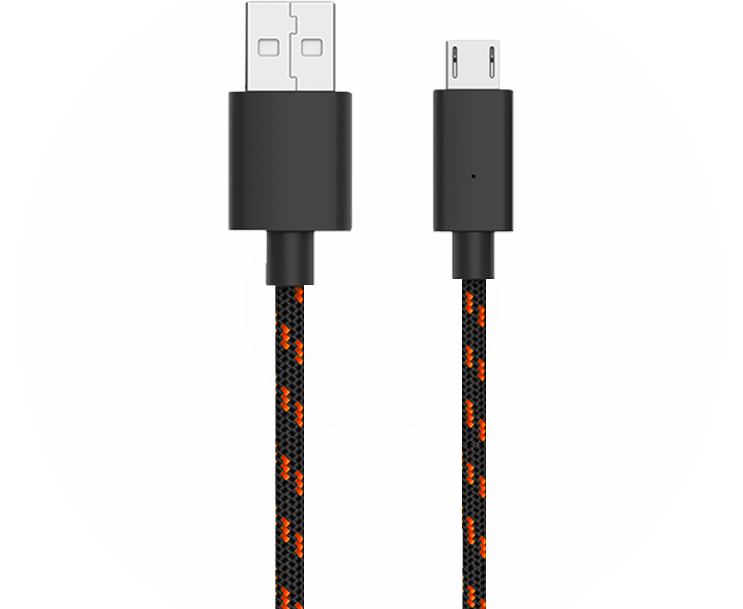
- ⌁USB-C data cable
You're on your phone
Calibration needs a computer (Windows, Mac or Chromebook). Send yourself this page, then open it on the computer in Chrome or Edge. Installing the modules first? The steps are below.
Open this page in Chrome or Edge
Your browser can't talk to controllers. Open this page in Google Chrome or Microsoft Edge on this computer.
- Connect
- Check
- Center
- Range
- Save
- Done
Connect your controller
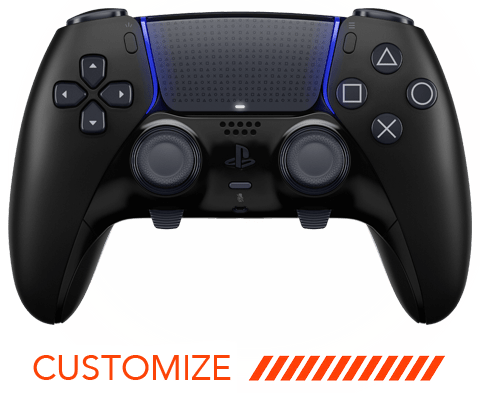
- Plug your DualSense Edge into this computer with a USB-C data cable.
- Press Connect controller.
- In the box that opens, pick DualSense Edge Wireless Controller and press Connect.
Connected. Let go of the sticks
The orange dots show where your sticks are. With your hands off, both should sit in the middle. Calibrating fixes any small offset.
Step 1: center
Put the controller flat on a table and don't touch the sticks. Press the button and wait a few seconds.
Step 2: range
Press Start, then slowly roll both sticks around the outer edge, pressing them all the way out. Do about 3 circles each way, until both bars are full.
Keep rolling both sticks slowly around the edge, all the way out. Press Finish when both bars are full.
Step 3: save to your thumbsticks
This stores the new calibration inside both TMR modules so it stays, even after the controller turns off. It takes about 5 seconds. Don't unplug while it saves.
Saving… keep the controller plugged in
All done. Game on.
Your TMR Edge sticks are calibrated and saved. Let go of the sticks: both dots should sit in the center. You can unplug the controller now.
How it works
1. Install the modules
Skip this if your modules are already installed.
- Turn off the controller and unplug any cable.
- Pull off both stick caps.
- Press the release button on the back of the controller and take off the front cover.
- Lift the lever next to the stick module, then pull the old module straight out.
- Slide in your TMR Edge module and push the lever down until it locks.
- Put the cover back on until it clicks, then put the stick caps back on.
2. Calibrate
On a computer, with this page open in Chrome or Edge.
- Plug the controller into a computer with a USB-C cable that carries data. Some charging-only cables won't work.
- Open this page on that computer in Google Chrome or Microsoft Edge.
- Press Connect controller and pick DualSense Edge Wireless Controller.
- Center: put the controller flat on a table, hands off the sticks, and press Calibrate center.
- Range: press Start, then slowly roll both sticks around the outer edge, about 3 circles each way, until both bars are full. Press Finish.
- Save: press Save to thumbsticks and don't unplug until it says done. That's it, you're ready to play.
Common questions
01My computer doesn't find the controller
Use a USB-C cable that carries data and plug it straight into the computer, not a hub. Close Steam, DS4Windows and the PlayStation Accessories app if they're open, then reload this page in Chrome or Edge and press Connect again.
02Can I calibrate on my phone or on the PS5?
No. Phones and the PS5 can't calibrate stick modules. You need a Windows PC, Mac or Chromebook with Google Chrome or Microsoft Edge. If you're on your phone now, use Email me the link at the top of this page.
03Do I have to calibrate?
We recommend it. Every controller is a little different, and calibrating after you install the modules makes sure the sticks rest perfectly in the center and reach the full range.
04It says my controller needs a restart
Unplug the USB cable, wait about 5 seconds, plug it back in and press Connect controller again.
05What happens if I unplug in the middle?
If you unplug before the Save step, nothing is changed and your old calibration stays. Please don't unplug while it's saving.
06Does calibration erase my Edge profiles?
No. It only changes the stick calibration, which is stored inside the TMR modules. If you move the modules to another DualSense Edge, their calibration moves with them.
07My sticks still drift after calibrating
Run the calibration once more and roll the sticks slowly all the way around the edge. If it still drifts, contact our support team with your order number and we'll help.
Need a hand?
Our team can walk you through it. Mon–Fri, 9 am–5 pm EST.