



Free Controller Tester for PS5, Xbox & Switch
Test your PS5 DualSense, DualSense Edge, Xbox Series X|S, Xbox Elite Series 2 or Nintendo Switch Pro controller right in your browser. This free online controller tester walks you through a guided test of stick drift, every button, both triggers and the vibration motors in about 2 minutes, and can recalibrate drifting PS5 sticks with a one-click restore to the original. Plug your controller in with a USB cable and pick a test.
- Free
- No download
- PS5 · DualSense Edge
- PS5 stick calibration
- Xbox Series · Elite 2
- Switch Pro · Switch 2 Pro
- Results stay in your browser
Plug in a controller
Connect a PS5, Xbox or Switch Pro controller to this computer with a USB cable, then press any button on it.
Switch 2 Pro Controller? It stays silent over USB until it's woken up.
- Nothing happens? Try another cable. Many USB-C cables only charge and don't carry data.
- Close Steam, DS4Windows or other controller apps while testing. They can take over the controller.
- Use Google Chrome or Microsoft Edge.
- Still nothing? Open Connection details at the bottom of the page to see what Chrome detects.
Controller details
Buttons
Not testedPress and release every button once. Each one turns green when it works. A button that fires twice from one press gets flagged, which usually means a worn or dirty switch.
Sticks
Not testedNot testedFirst run the hands-off test. Then flick each stick and let it snap back a few times, and roll each stick slowly around the outer edge 2–3 times. The small square next to each stick zooms in on the center.
| Left | Right | |
|---|---|---|
| Resting position (drift) | — | — |
| Jitter at rest | — | — |
| Snap-back to center (worst of last flicks) | — | — |
| Edge coverage | — | — |
| Weakest edge point | — | — |
| Circularity error | — | — |
Stick calibration
Not calibratedTriggers
Not testedSqueeze each trigger slowly all the way in, then let go.
| L2 | R2 | |
|---|---|---|
| At rest | — | — |
| Full press | — | — |
| Smoothness (steps seen) | — | — |
Rumble
Not testedPlay each motor, then mark whether you felt it.
Back paddles
Not testedFor an Elite controller or a controller with a paddle mod. Pick how many paddles it has, click Test, then press that paddle. It shows which button the paddle acts as, so mapped and unmapped paddles both work.
PS5 extras
Connect PS5 extras to also test the touchpad, motion sensors, light bar, adaptive triggers, speaker, headphone jack, mic and battery, and to read the serial number, color, board revision and firmware. On a DualSense Edge it also checks the back buttons, Fn buttons and trigger stops. Chrome asks you to pick the controller the first time; after that it connects by itself.
Touchpad
Not testedDrag a finger over the whole pad until it's green, then touch with two fingers.
Motion sensors
Not testedTwist the controller quickly in every direction, then tilt it all the way over each way.
Lights
Not testedTry a few light bar colors, the player lights and the mic light.
Adaptive triggers
Not testedPick an effect and squeeze both triggers. Stiff should push back, Click should snap, Buzz should vibrate.
Speaker, headphone jack and mic
Not testedPlay the tone and mark whether you heard it. For the jack, plug headphones into the controller first. For the mic, start the mic test and talk or blow toward the controller.
Battery and info
USB connection
Not testedGently wiggle the cable where it plugs into the controller for a few seconds. Every disconnect is counted, which catches loose or damaged USB ports.
Connection details
What Chrome sees right now. If a controller doesn't show up or doesn't respond, send a screenshot of this.
How the guided controller test works
Pick a test above, plug in your controller and follow the steps. Each step tells you exactly what to do, measures the result by itself and moves on when the check passes. You get a clear pass or fail for every part of the controller at the end.
- Connect. Plug the controller into your computer with a USB cable and press any button. Use Google Chrome or Microsoft Edge.
- Hands off. Set the controller down. The tester measures stick drift while nobody touches it, then checks the vibration motors.
- Buttons. Press every button once. Each one lights up on the controller picture. A button that fires twice from one press gets flagged.
- Triggers. Squeeze both triggers slowly. The tester checks that they rest at 0% and reach 100% smoothly.
- Sticks. Roll each stick around the edge, then flick it and let go, to check range and snap-back.
- Extras. On a PS5 DualSense the full test also checks the touchpad, motion sensors, light bar, adaptive triggers, speaker and mic.
- Results. See every check with its result. Print it or copy it, for example to send with a warranty claim.
Stick drift test
Stick drift is when a stick reports movement while you aren't touching it. In a game your character walks or the camera slowly turns on its own. It usually comes from wear or dirt in the stick's sensor and gets worse over time.
This stick drift test measures each stick while the controller sits on the desk untouched. It shows the resting position as a percentage of the full stick range, so you can see exactly how far off center each stick sits. It also measures jitter (how much the reading wobbles at rest), snap-back (how close the stick returns to center after you flick it) and range (whether the stick reaches the edge in every direction, plus how round its movement is).
Most games ignore a small area around the center, called the deadzone, so a stick under 5% usually feels fine. Above 10% you'll usually notice it in games.
PS5 controller calibration: fix stick drift
Found drift on a PS5 DualSense? Pick Stick drift test & calibration above. After the drift test, the tester lets you recalibrate the sticks right in your browser, using the same calibration commands the controller has built in. Then it measures the sticks again so you can see the difference.
- Calibrate center. Push both sticks into each corner and let go when asked. This resets where the controller thinks the middle is, which fixes most mild drift and off-center sticks.
- Calibrate range (optional). Roll both sticks around the edge for a few seconds. This helps sticks that don't reach full tilt in some directions.
- Check and save. The new calibration is temporary until you click Save to controller. The tester then restarts the controller and checks the calibration was stored.
- Restore the original any time. Before anything changes, the tester keeps a copy of your controller's original calibration on your computer. Restore original calibration puts it back, so nothing you do here is permanent unless you want it to be.
Calibration works on genuine DualSense controllers with current firmware, connected with a USB cable. It's turned off for controllers that fail the genuine check, and for old firmware (update it with the PlayStation Accessories app first). On a DualSense Edge, Sony write-protects the stick modules, so a calibration only lasts until you unplug the controller.
Calibration fixes drift caused by a stick that's simply off center. If the drift comes back or keeps getting worse, the stick itself is worn and needs replacing.
Xbox and Switch controller calibration
Xbox and Nintendo controllers can't be calibrated from a browser, so the tester shows you where to do it, then re-tests the sticks afterwards:
- Xbox Series X|S and Elite Series 2: open the Xbox Accessories app on Windows or an Xbox, select the controller, then More options and Recalibrate.
- Switch Pro Controller: on the Switch, go to System Settings, then Controllers and Sensors, then Calibrate Control Sticks.
Controller vibration test
The vibration test plays each motor on its own: the heavy left motor, the light right motor and, on Xbox controllers, the motor in each trigger. You mark whether you felt it.
The tester can also check the motors by itself. A DualSense connected with PS5 extras feels its own vibration through its motion sensor. For other controllers it can listen with your computer's microphone, if you allow it. Set the controller on the desk near the microphone and it compares the sound with the motor on and off.
PS5 controller tester
For the DualSense and DualSense Edge. Click Connect PS5 extras and the tester talks to the controller directly. It then also tests:
- Touchpad (whole surface and two fingers), PS button, Create, Options and the mic button
- Motion sensors (gyro and tilt on every axis)
- Light bar, player lights and mic light
- Adaptive triggers: resistance, click and vibration effects
- Speaker, headphone jack and the built-in microphone
- Battery level and charging state
It also reads the controller's details: model, serial number, color, board revision, firmware version, Bluetooth address, and a genuine Sony check that flags likely clones. On the DualSense Edge it checks the back buttons, Fn buttons, trigger stop switches and both stick modules.
Xbox controller tester
For the Xbox Series X|S controller, the Xbox One controller and the Xbox Elite Series 2.
- Every button, the D-pad, the Share button and both stick clicks
- Analog triggers from 0 to 100%
- Both rumble motors and the impulse trigger motors
- Elite Series 2 back paddles, mapped or unmapped
- Exact model and model number (for example 1914 for Series X|S), and the firmware version read over USB
On Windows the tester shows the exact model on its own. On a Mac, click Read from USB in the controller details.
Switch Pro Controller tester
For the Nintendo Switch Pro Controller and the Switch 2 Pro Controller.
- All buttons, including Home, Capture, and on Switch 2 the C button and the GL/GR back buttons
- Stick drift, range and snap-back using the controller's own calibration
- ZL and ZR (on/off triggers) and the HD rumble motors
- Switch 2: motion sensors and serial number
The Switch 2 Pro Controller stays silent over USB until it's woken up. Click Connect Switch 2 Pro and pick it in Chrome's list.
What your results mean
| Check | Pass | Warning | Fail |
|---|---|---|---|
| Stick drift (resting position) | Under 5% | 5–10% | Over 10% |
| Snap-back to center | Under 8% | 8–15% | Over 15% |
| Stick range (weakest edge point) | 95% or more | 88–95% | Under 88% |
| Trigger full press | 97% or more | 85–97% | Under 85% |
| Buttons | Every button works | A button fired twice from one press | A button doesn't work or stays pressed |
| USB connection | No disconnects | 1–2 disconnects | 3 or more |
A warning means the controller works but something is starting to wear. A fail usually means the part needs cleaning, calibration, repair or replacement.
Test your controller on your phone
Yes, you can test a controller on your phone. Open this page in Chrome on Android or Safari on iPhone, connect the controller and pick Quick check or Stick drift test.
- iPhone and iPad: pair the controller in Settings, then Bluetooth. PS5 DualSense, DualSense Edge and Xbox Wireless controllers work.
- Android: pair over Bluetooth, or plug in with a USB-C cable or adapter.
On a phone the tester checks every button, both sticks (including stick drift, range and snap-back) and the triggers. Vibration works on most Android phones, but not every iPhone. The PS5 extras (touchpad, motion, light bar, adaptive triggers, speaker, mic), controller details, the genuine check and PS5 calibration need Chrome or Edge on a computer with a USB cable.
Controller not detected? Try this
- Press a button. Browsers only show a controller after you press one of its buttons while the page is open.
- Use a data cable. Many USB-C cables only charge. If the controller charges but never shows up, try another cable.
- Use Chrome or Edge on a computer. Safari and Firefox only run part of the test, and phones can't use the PS5 extras.
- Close other controller apps. Steam, DS4Windows and similar apps can take over the controller.
- Turn off Bluetooth if it's paired. A paired DualSense can stay on Bluetooth even with the cable plugged in. The tester tells you when that happens.
Controller tester FAQ
Is this controller tester free?
Yes. It's free, needs no download or account, and runs right in your browser.
Which controllers can I test?
PS5 DualSense and DualSense Edge, PS4 DualShock 4, Xbox Series X|S, Xbox One and Xbox Elite Series 2, and the Nintendo Switch Pro and Switch 2 Pro controllers. Most other USB and Bluetooth gamepads work for the basic button, stick and trigger tests too.
How do I test my controller for stick drift?
Plug the controller in, pick Stick drift test or Quick check above, and set the controller down when asked. The tester measures where each stick rests while nobody touches it. Under 5% is normal, 5–10% is a warning and over 10% is drift you'll notice in games.
Can this page fix stick drift?
On a PS5 DualSense, often yes. Pick Stick drift test & calibration, run Calibrate center, check the result and click Save to controller. That fixes drift from a stick that sits off center. Xbox controllers are recalibrated in the Xbox Accessories app, and Switch controllers in the Switch system settings. Drift that keeps coming back means a worn stick that needs replacing.
How do I calibrate my PS5 controller?
Plug the DualSense in with a USB cable, open this page in Chrome or Edge and pick Stick drift test & calibration. Click Connect PS5 extras, then follow the steps: Calibrate center (push the sticks into each corner and let go), optionally Calibrate range, then Save to controller. The tester restarts the controller and checks the calibration stuck.
Can I undo a calibration and go back to the original?
Yes. Before you calibrate, the tester saves your controller's original calibration on your computer. Click Restore original calibration, then Save to controller, and it's back exactly as it came. A calibration you never save is also undone by simply unplugging the controller.
Does calibration work on the DualSense Edge?
You can calibrate it and test the result, but Sony write-protects the Edge stick modules, so the calibration is lost when you unplug the controller.
Does it work on Mac, Windows and Chromebook?
Yes, in Google Chrome or Microsoft Edge on Windows, macOS, ChromeOS and Linux. The PS5 extras (touchpad, motion, lights, adaptive triggers, speaker, mic) need Chrome or Edge on a computer.
Can I test my controller on my phone?
Yes. Open this page in Chrome on Android or Safari on iPhone, pair the controller over Bluetooth (or plug it in with USB-C on Android) and run Quick check or Stick drift test. Buttons, sticks, stick drift and triggers all work. The PS5 extras, controller details, genuine check and calibration need Chrome or Edge on a computer.
Does it work in Safari or Firefox?
Yes for the basic button, stick, trigger and stick drift tests. The PS5 extras, the Switch 2 Pro wake-up, the controller details and calibration need Google Chrome or Microsoft Edge.
Why isn't my controller showing up?
Press any button on the controller after the page has loaded. If it still doesn't appear, try a different USB cable (many only charge), close Steam or DS4Windows, and use Chrome or Edge.
Can I test the controller over Bluetooth?
Yes for buttons, sticks, triggers, rumble and, on a DualSense, the touchpad, motion and lights. The serial number, genuine check, calibration, speaker, mic and USB port test need a USB cable.
Why does the tester ask for my microphone?
Only if you choose to. It can listen for the vibration motors on controllers without a motion sensor, and it tests the DualSense's built-in mic. Nothing is recorded or uploaded.
How can I tell if my PS5 controller is genuine?
Connect PS5 extras and look at Controller details. The genuine check runs the same tests a genuine Sony DualSense always passes, and flags controllers that fail them as possible clones. It also shows the serial number, color, board revision and firmware.
Is my data private?
Yes. The test runs in your browser and your controller's data isn't uploaded.
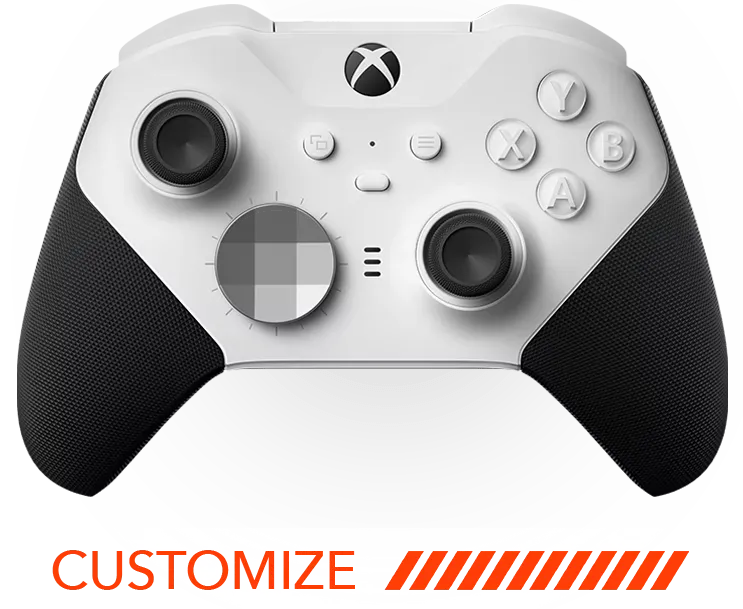
Want a controller that's built and tested by pros?
Every ModdedZone custom controller is checked by our techs before it ships. Design yours in our controller builder.